Android
APK file · Manual installationCompatible with supported Android devices. Download the APK and follow five simple installation steps.
Download Android APKOnly install APKs from sources you trust.
Download the Sujal Dureja Classes Learning App for an easy way to access your courses, recorded lessons, tests, and study material.
Download the installation file for your operating system, then follow the illustrated step-by-step instructions below.
Compatible with supported Android devices. Download the APK and follow five simple installation steps.
Download Android APKDownload the IPA file and review the 13-step third-party installation guide. Installation cannot be guaranteed.
Download iOS IPAFollow these 5 steps in order to download, install, and access the Sujal Dureja Classes Learning App.
Click the Download Android APK button to download the Sujal Dureja Classes Learning App. Wait for the APK file to finish downloading on your device.
Download the APK file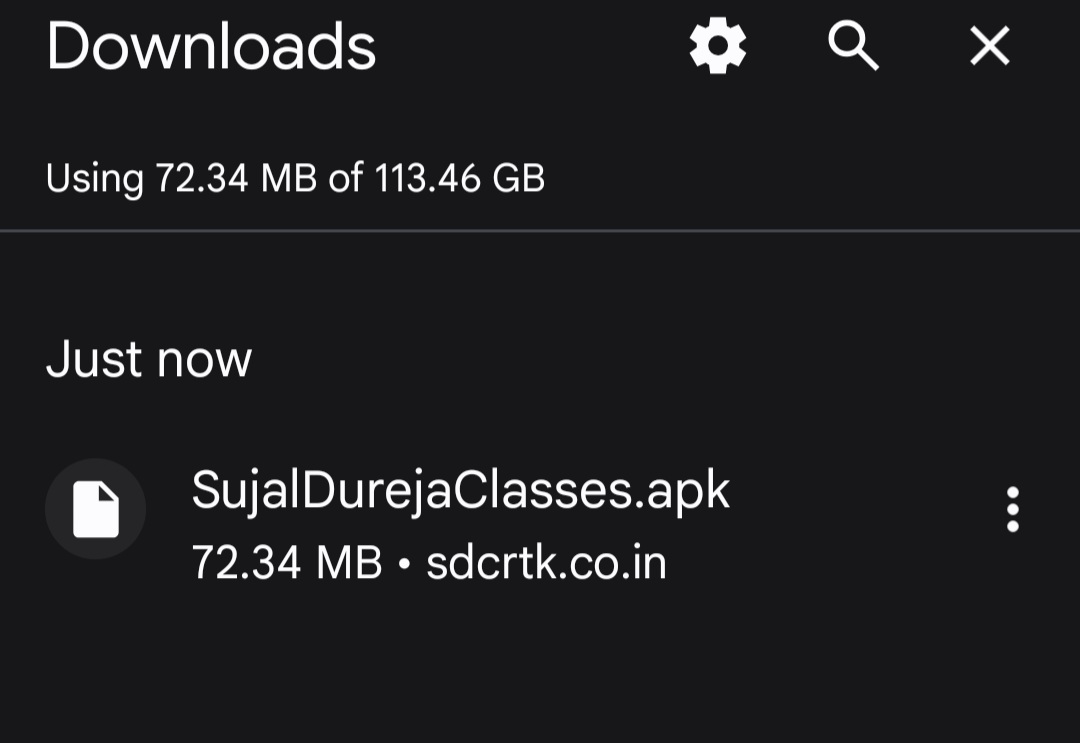
Open the downloaded APK file. If a Permission Required popup appears, tap the Settings button to open your phone settings and manage installation permissions.
Tap Settings to continue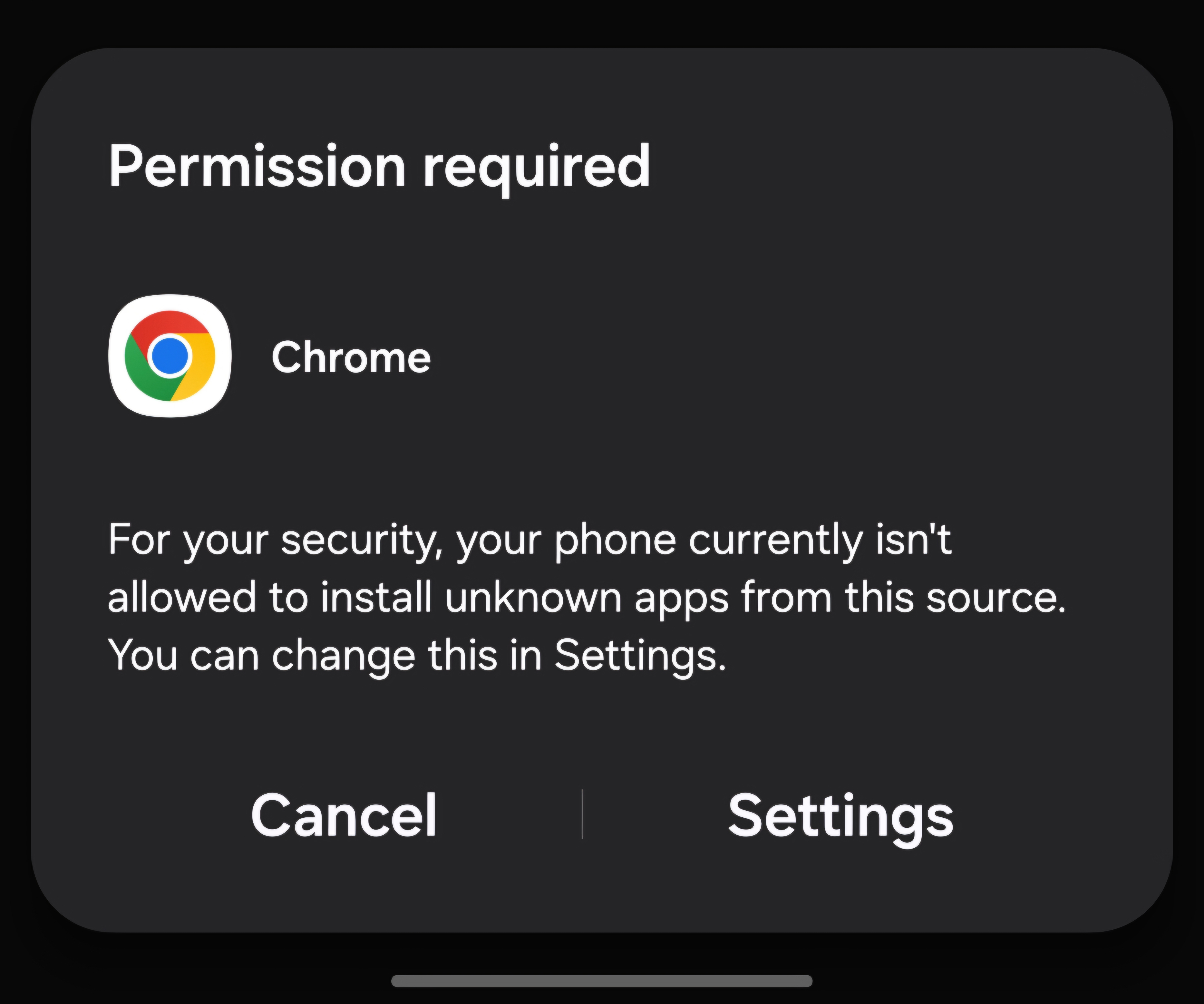
In your device settings, enable Allow from this source or Install unknown apps for the browser or file manager used to open the APK. Return to the installation screen afterward.
Enable installation permission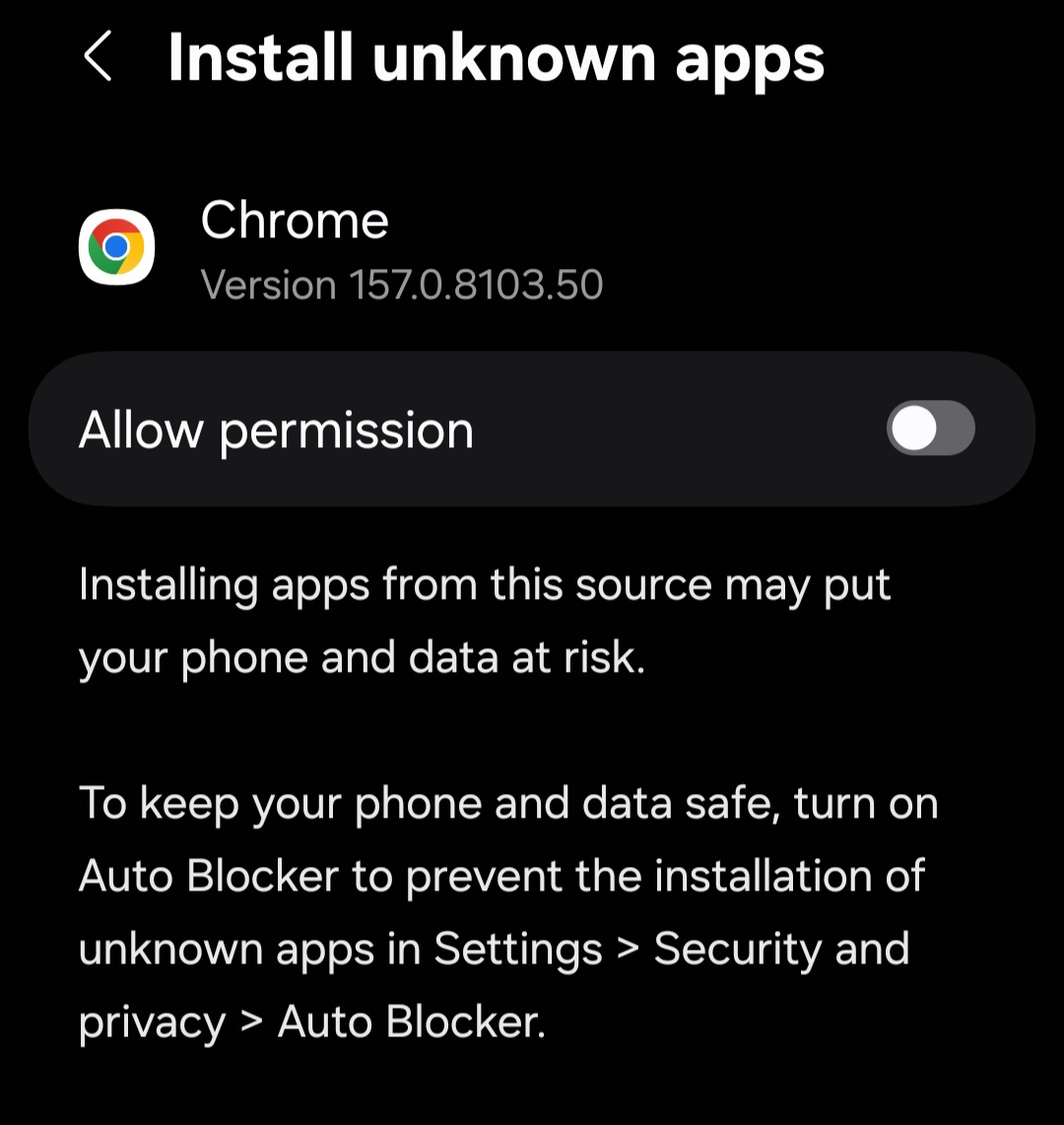
Tap the Install button and wait for the installation to complete. Once installed, tap Open to launch the Sujal Dureja Classes Learning App. For security, disable the unknown-app installation permission afterward.
Install and open the app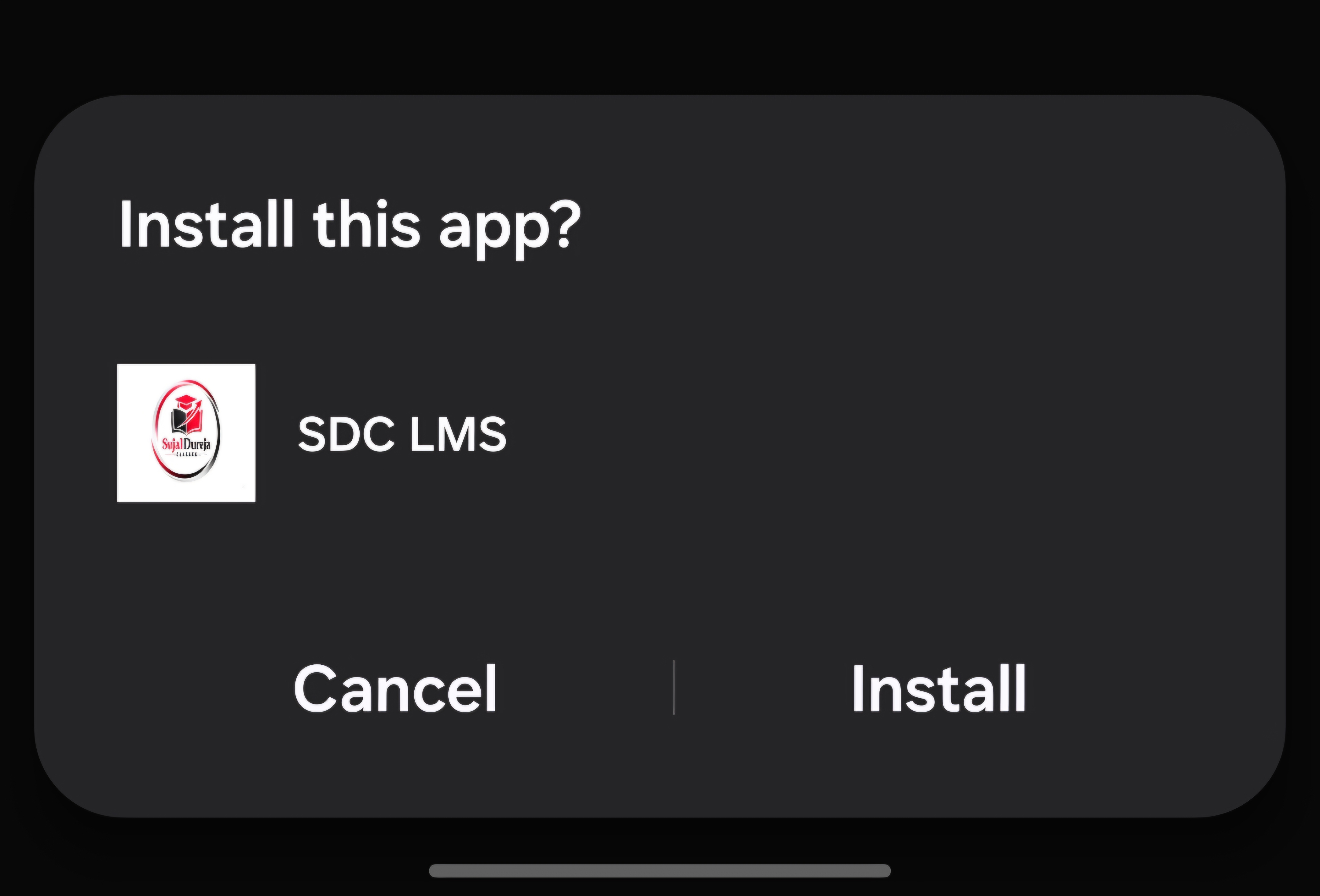
The login page of the Sujal Dureja Classes Learning App will appear. Enter the username and password provided during your admission and tap Login to access your courses, video lectures, online tests, and study materials.
Login using admission credentials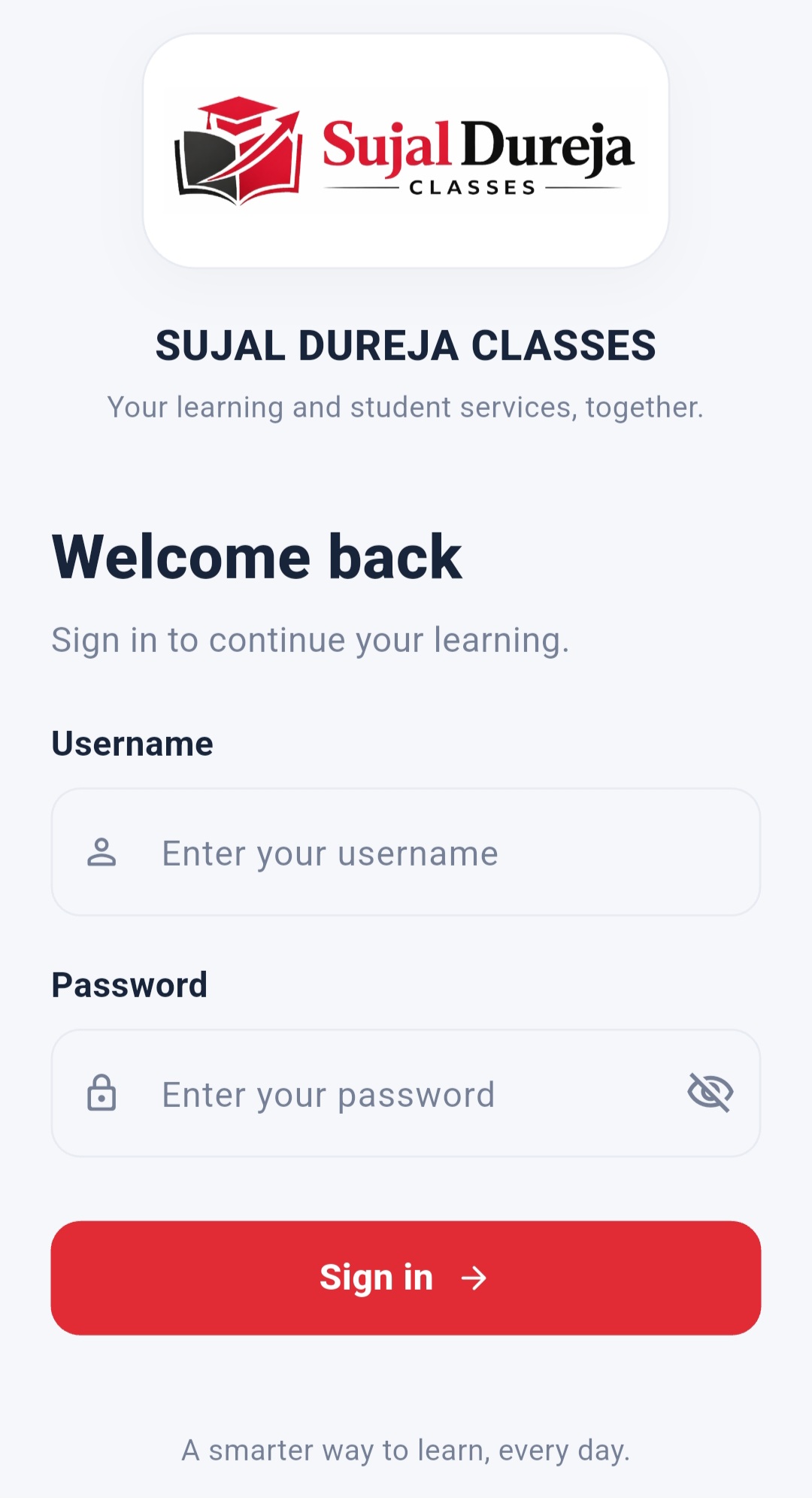
Follow these 13 illustrated steps to install the Sujal Dureja Classes Learning App on your iPhone. Third-party installation is at your own risk.
This method involves an external website, a DNS configuration profile, and third-party signing. Such profiles can change device network settings, certificates may be revoked, and the process may fail. Neither Apple nor Sujal Dureja Classes operates the external website. Only proceed if you understand and accept these risks. See Apple's guidance on configuration profiles.
Click the Download iOS IPA button to download the Sujal Dureja Classes Learning App installation file. Save the IPA file in the Files app.
Download and save the IPA file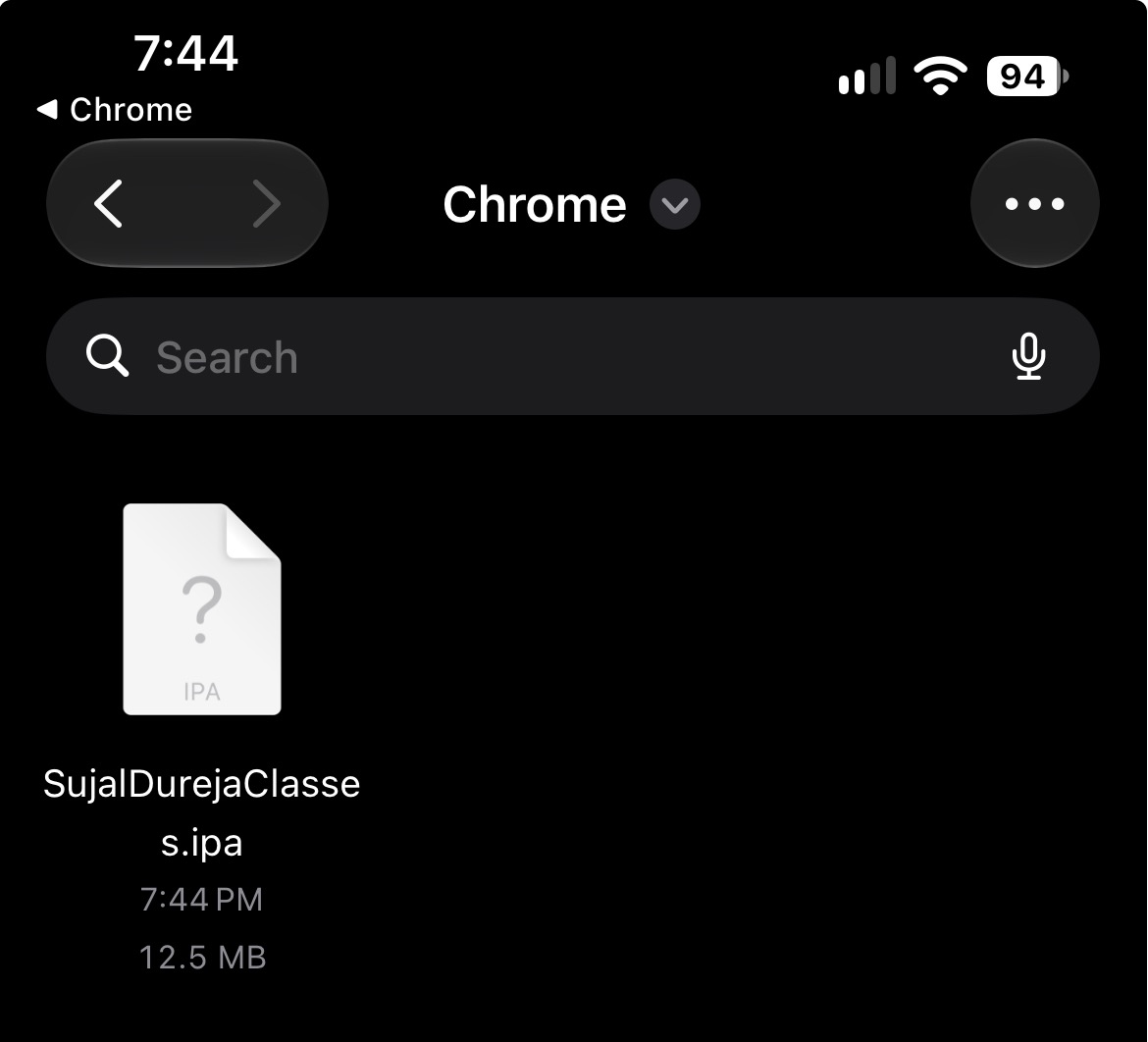
Open khoindvn.io.vn in Safari and select Download DNS Profile (Required). Review the third-party profile and its permissions before proceeding.
Download DNS Profile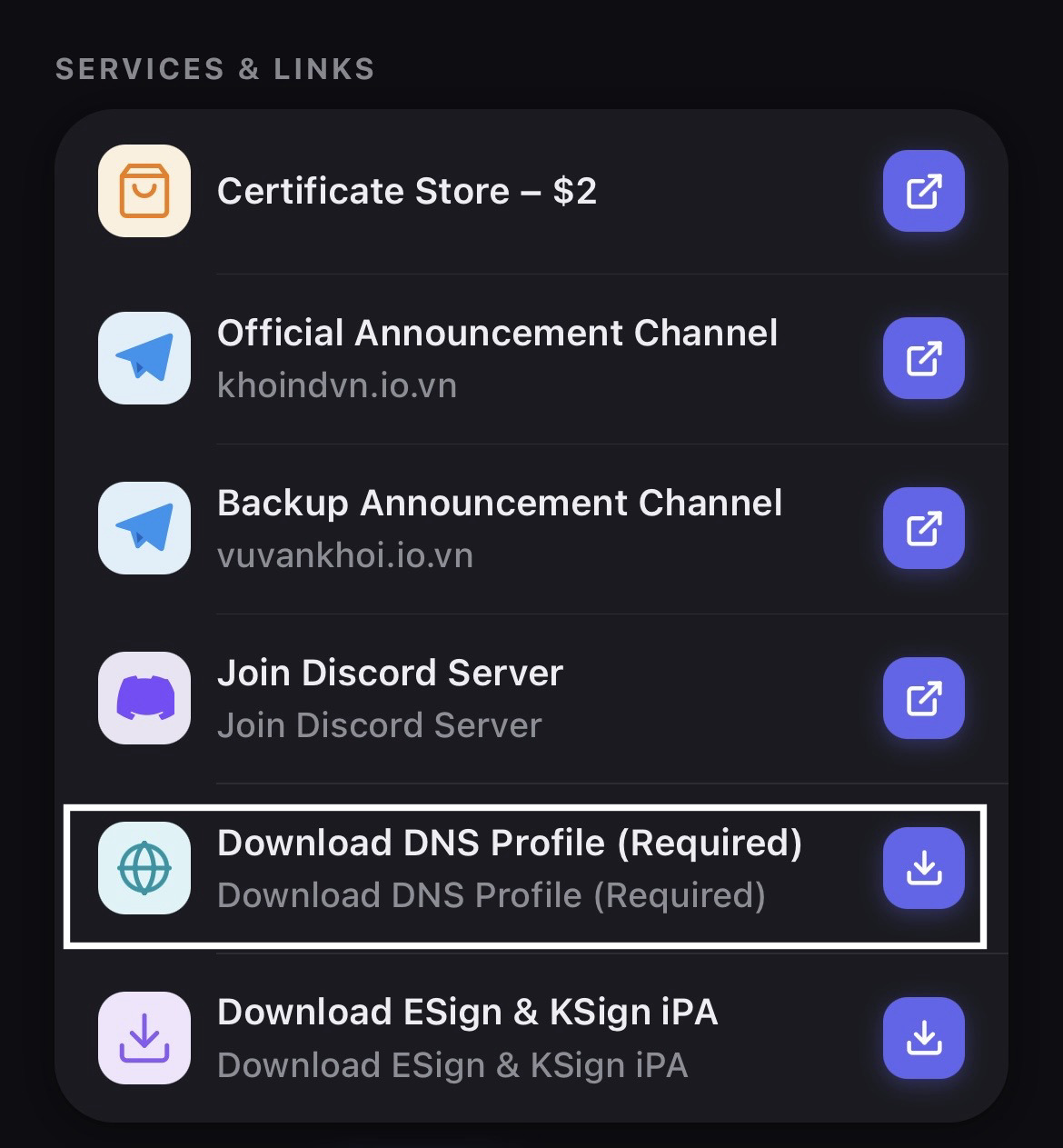
If iOS displays a permission popup for downloading a configuration profile, review the request and tap Allow if you trust the source.
Review and allow profile download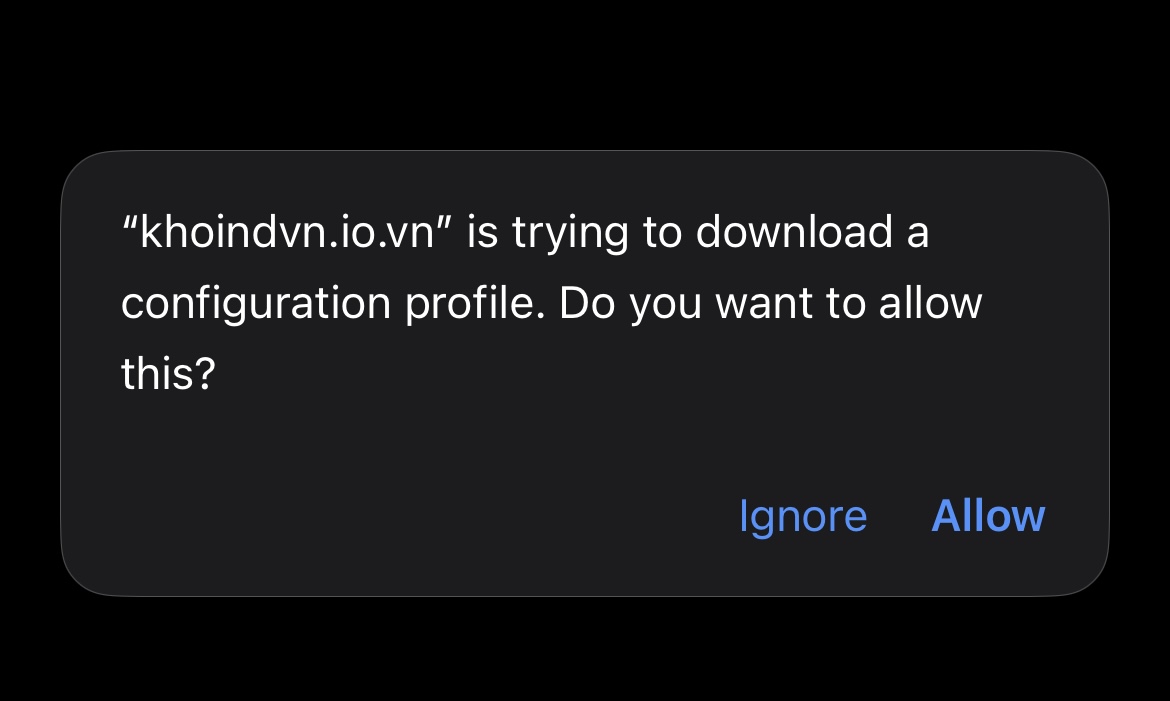
Open Settings → General → VPN & Device Management, select the downloaded DNS profile, and tap Install. Follow the prompts shown on your device.
Settings → General → VPN & Device Management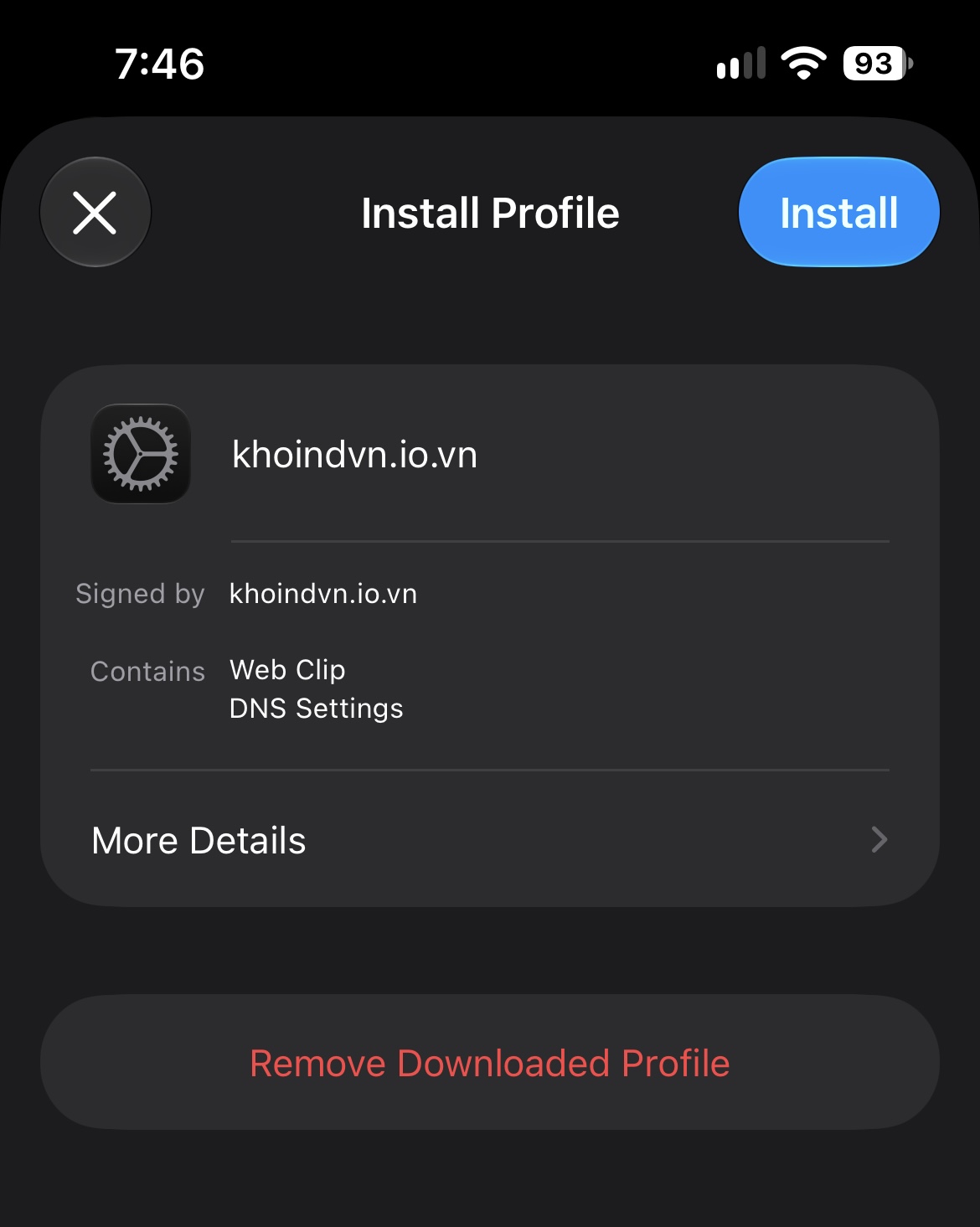
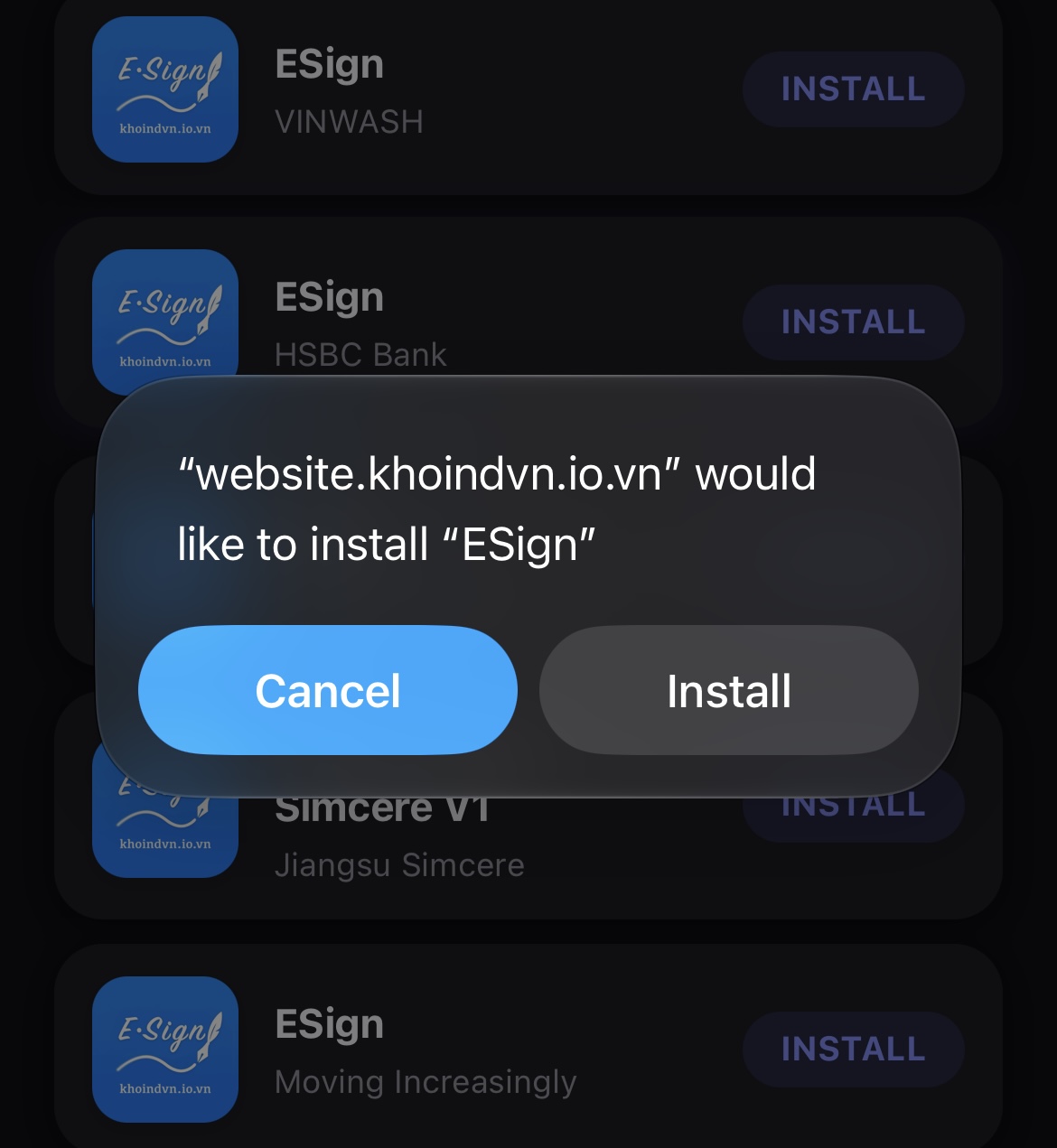
Return to the third-party website and locate Install ESign (HSBC Bank). Review the installation prompt and proceed only if you understand the risks of third-party certificates.
Review the ESign installation prompts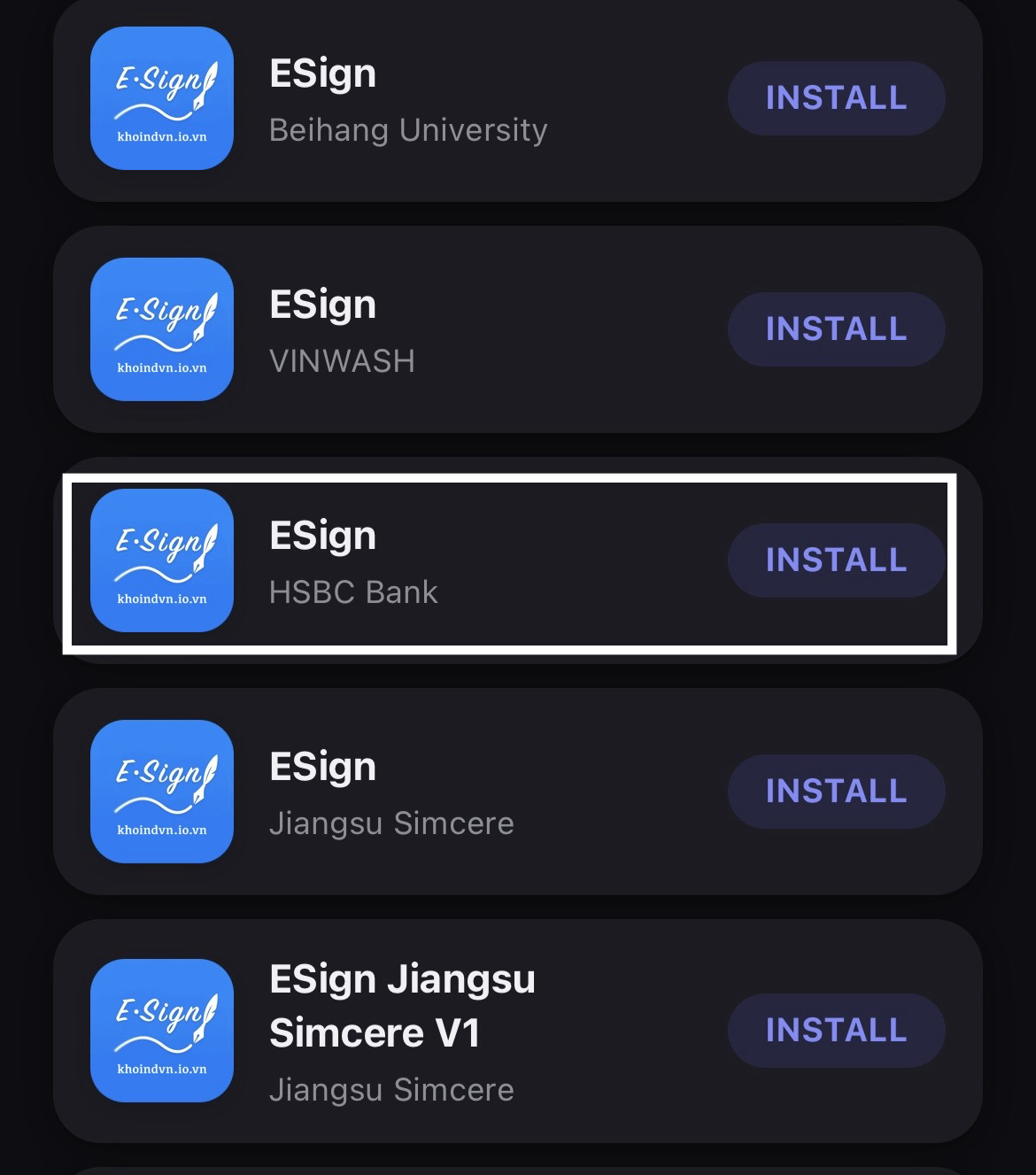
Go to Settings → General → VPN & Device Management. Review the HSBC Bank enterprise developer profile and any trust prompts. If you choose to proceed, follow the device instructions and restart your iPhone.
Review profile and restart device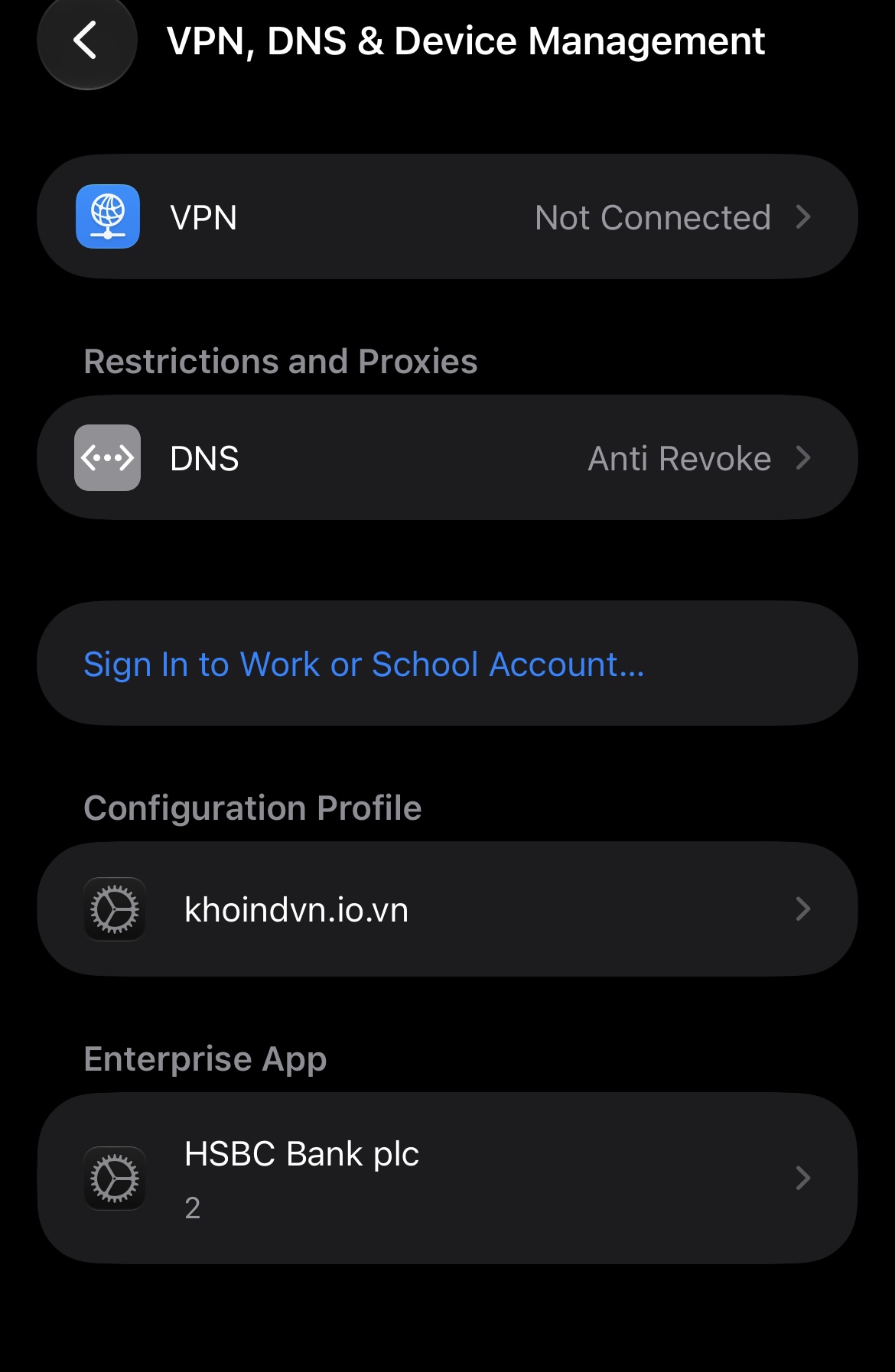
Open the Files app and locate the downloaded Sujal Dureja Classes IPA file. Share or import the file into ESign.
Import the IPA into ESign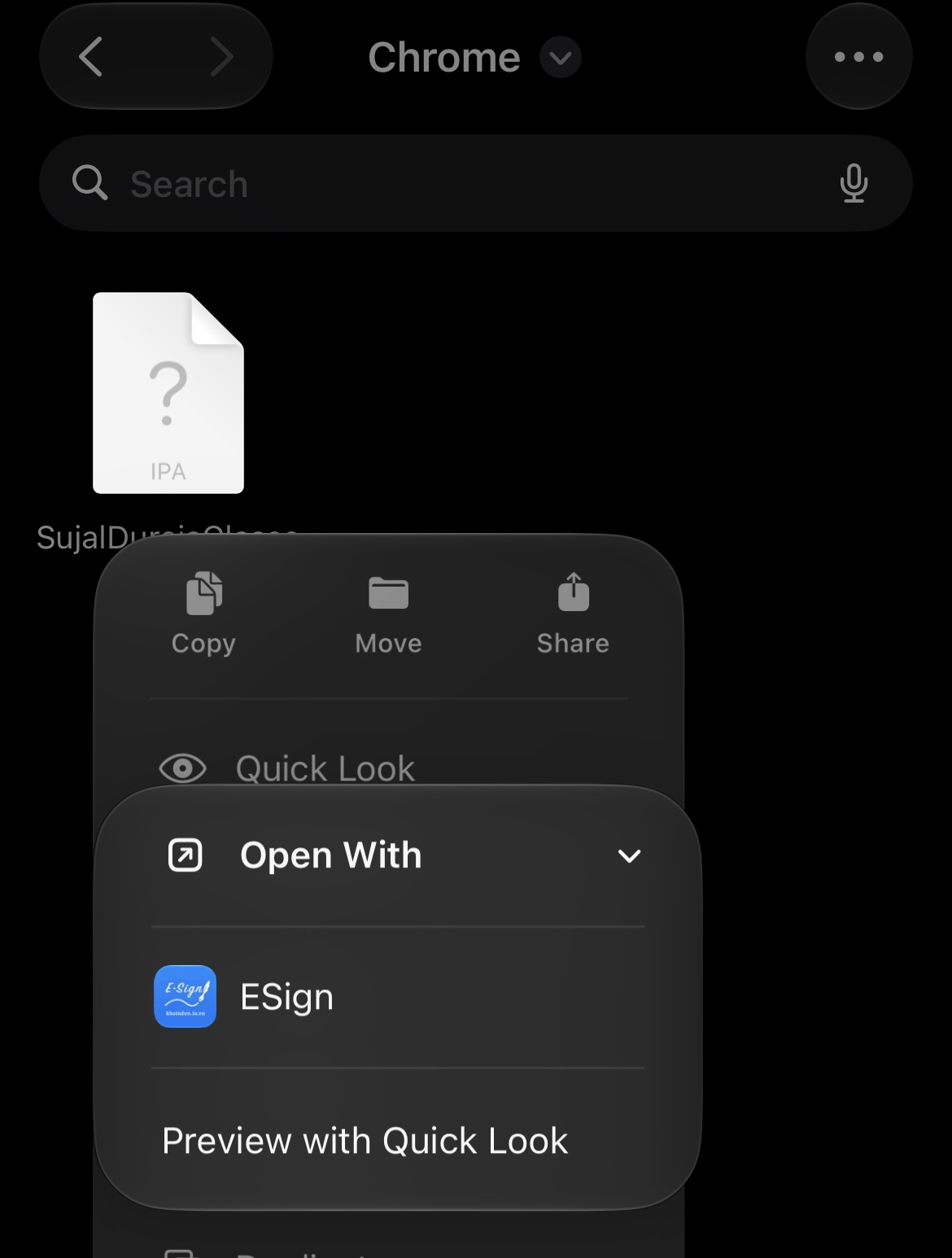
Inside ESign, locate the imported IPA file, tap it, and select Unzip to extract the application contents.
Tap IPA → Unzip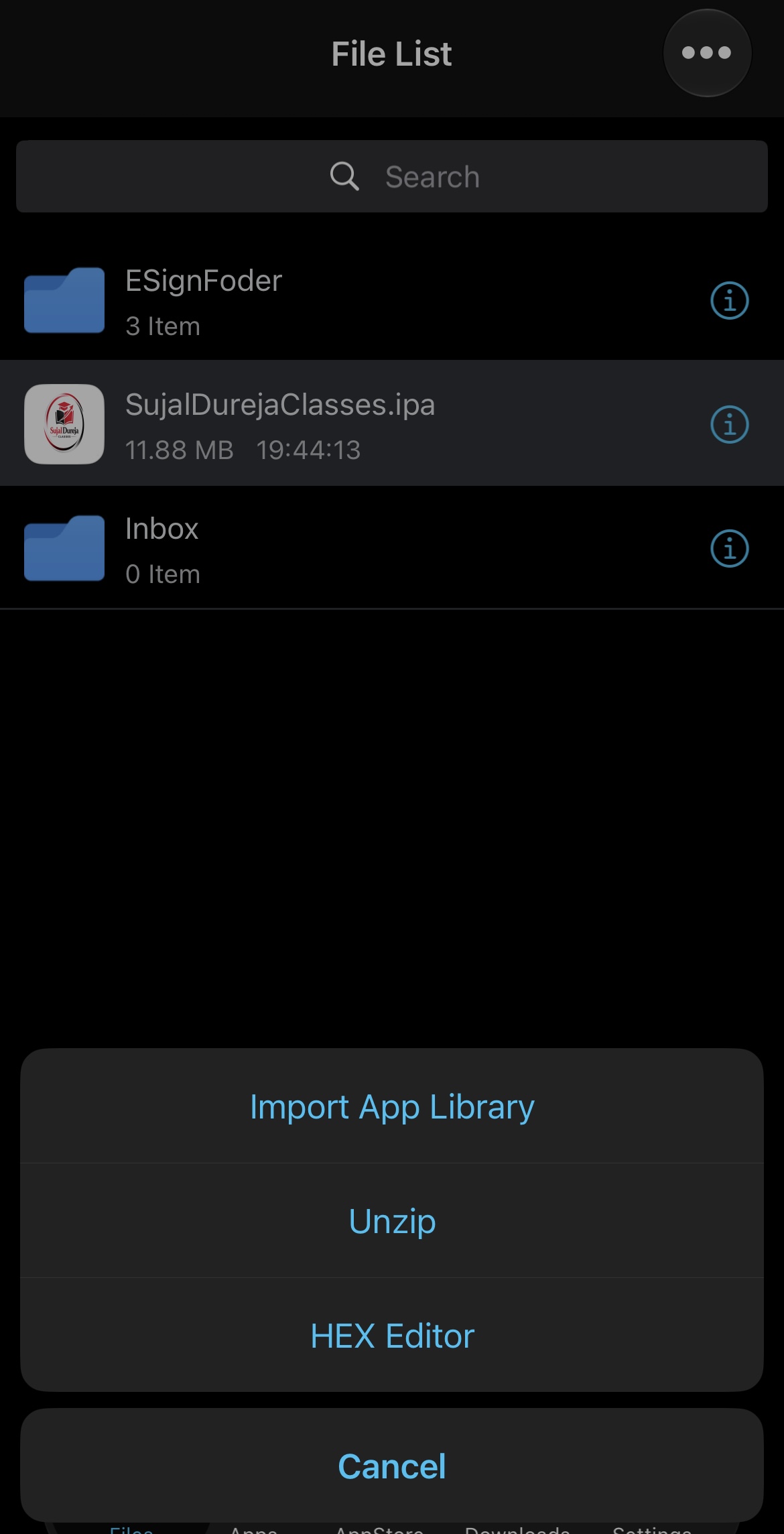
Open the extracted Payload folder, find Runner.app, tap it, and select the Signature option.
Payload → Runner.app → Signature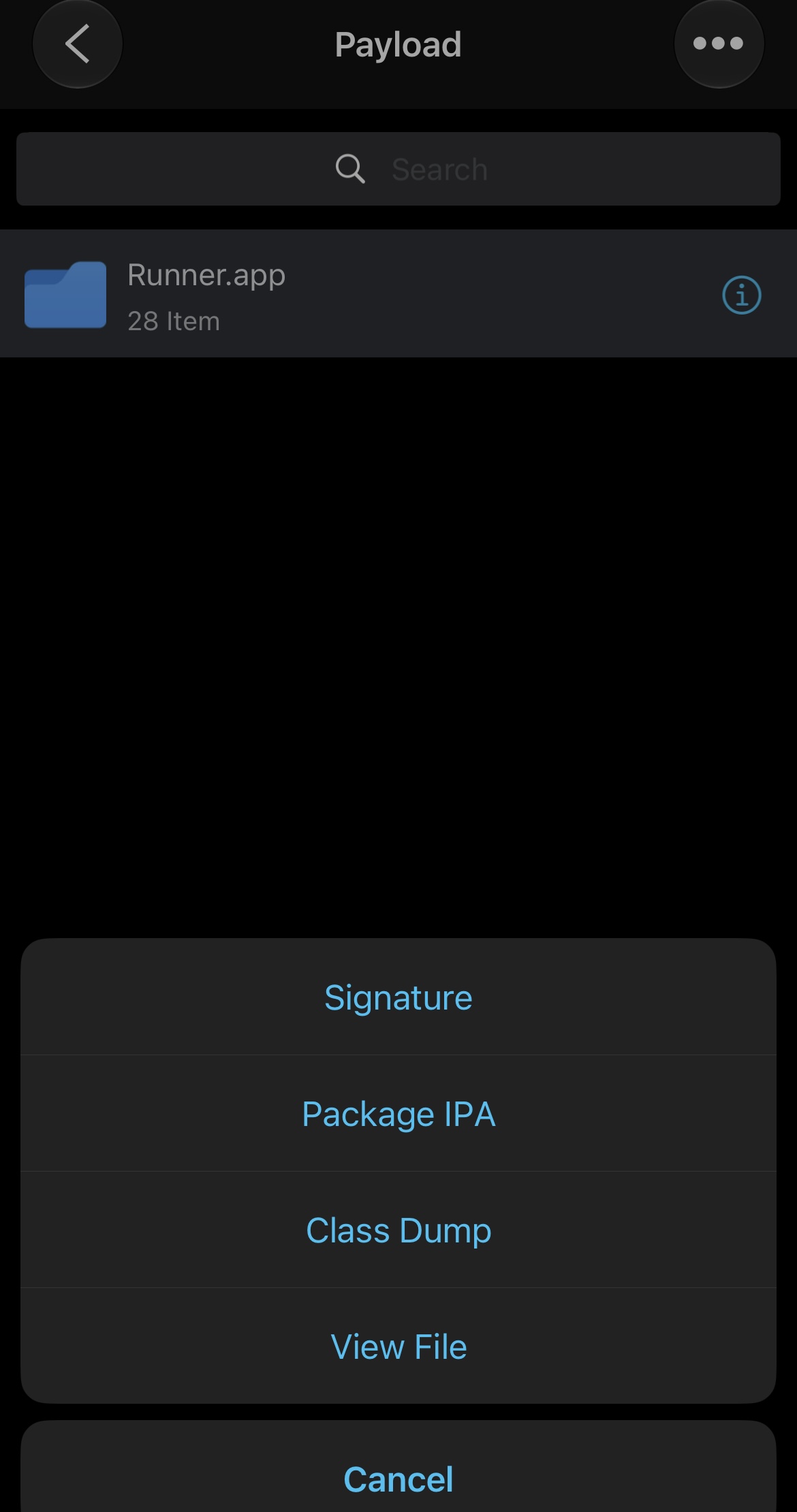
On the signing screen, review the application details and tap the red Signature button to begin signing the application.
Tap the red Signature button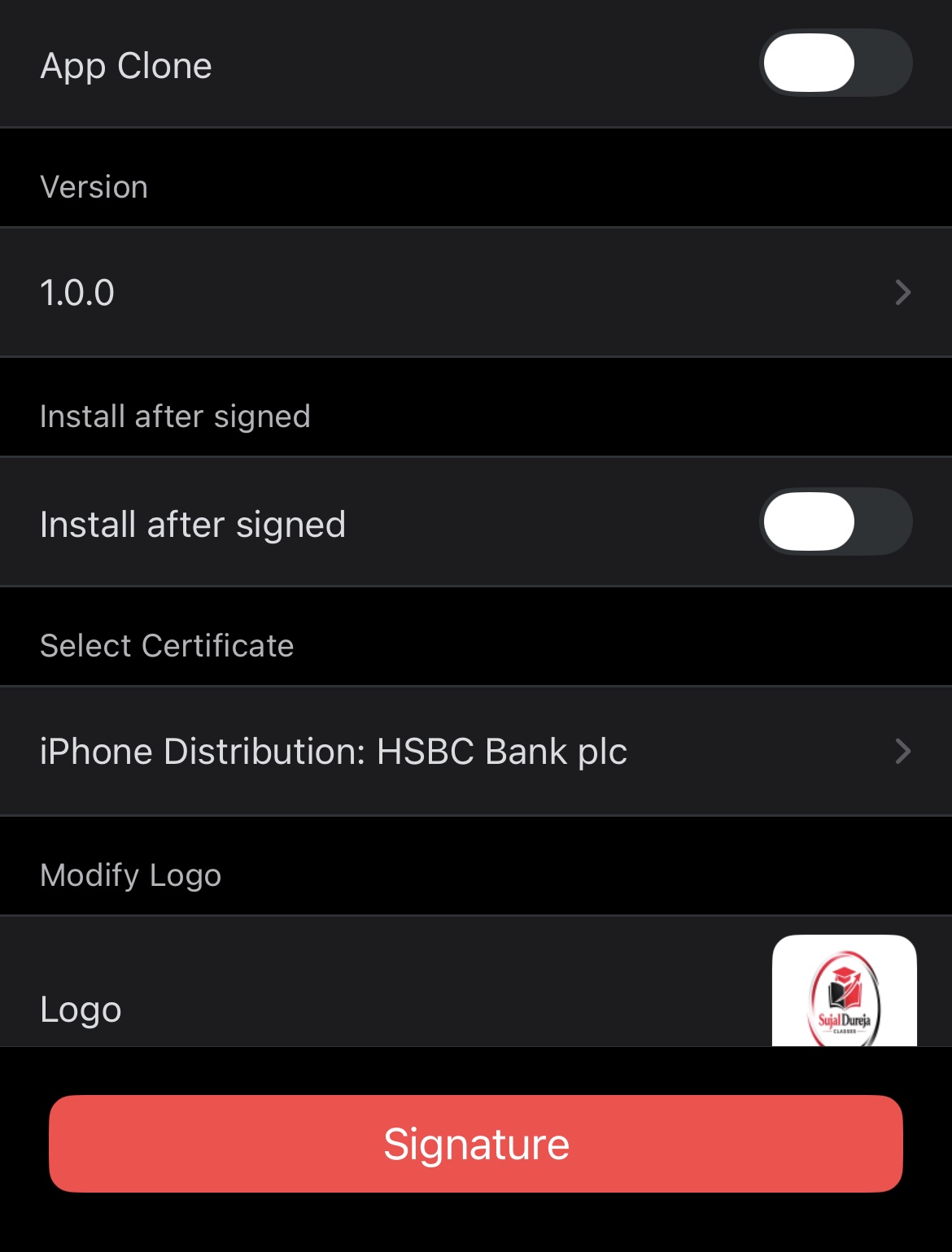
After signing is completed, tap the blue button shown in ESign to proceed with application installation.
Tap the blue button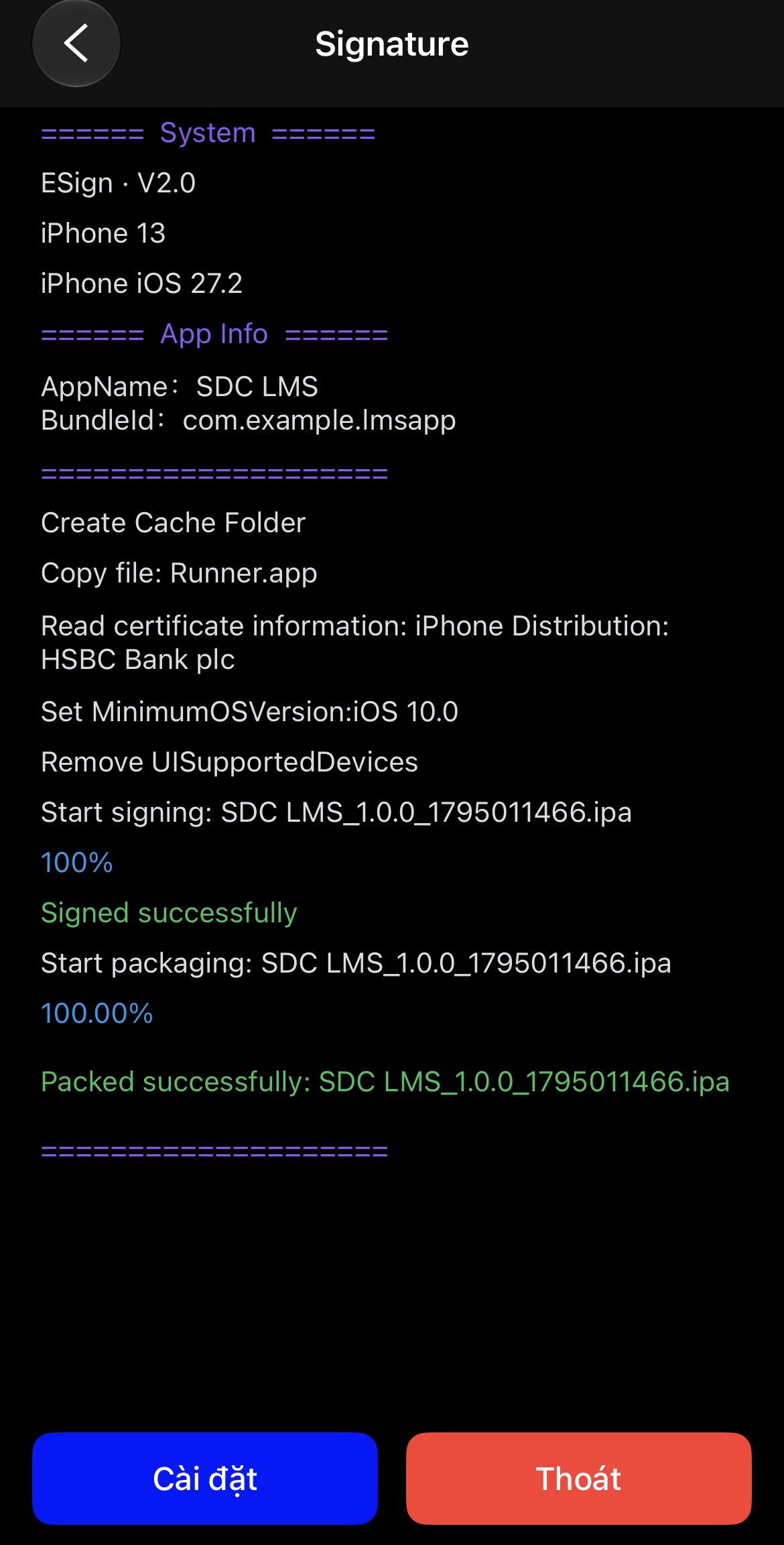
When your iPhone displays the application installation confirmation, tap Install. Allow the installation to complete.
Confirm installation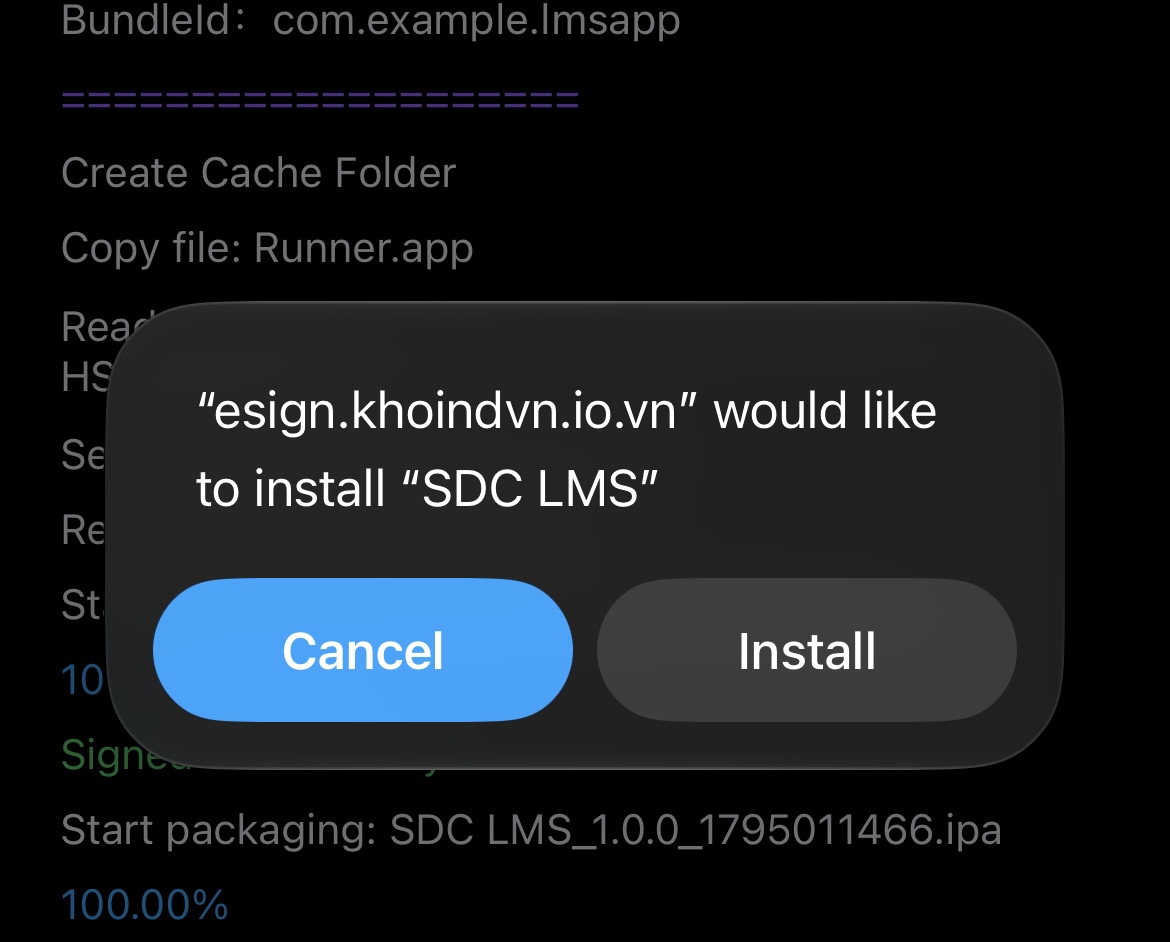
Open the Sujal Dureja Classes Learning App. Enter the username and password provided during your admission and tap Login to access your courses, tests, video lectures and study materials.
Login using your admission credentials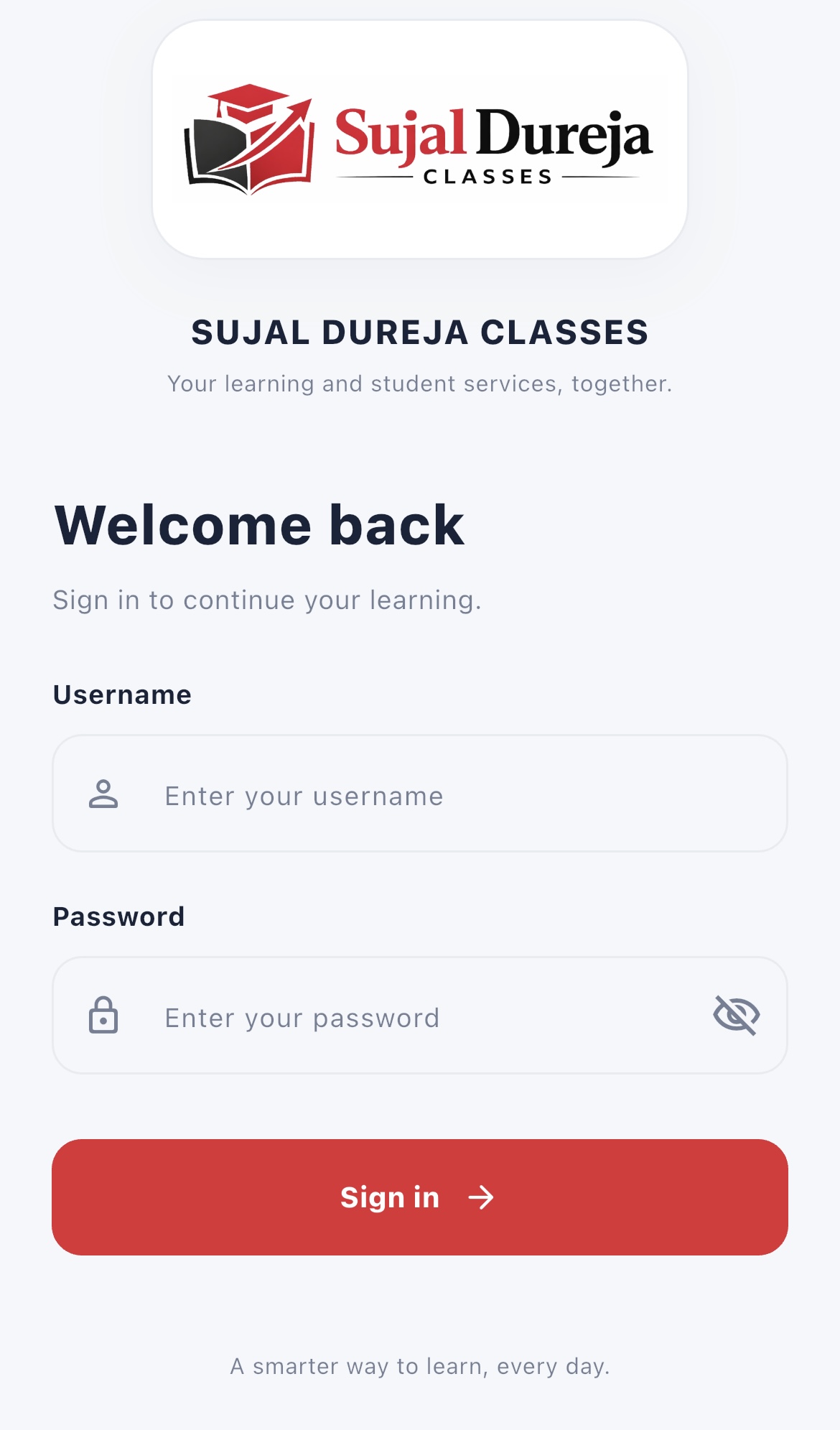
Find quick answers before you begin.
Use the student username and password provided to you during your admission at Sujal Dureja Classes. Contact the institute through its official channels if you need help accessing your account.
Verify the APK comes from the official SDC website. Android may prompt you to enable “Allow from this source” for your browser or file manager. After the installation, disable the permission again.
iOS doesn't normally install a downloaded IPA directly. App signing and an accepted distribution method are required. The third-party method described above may fail or stop working.
Third-party certificates may expire or be revoked. Avoid installing unfamiliar replacement profiles. Review installed profiles under Settings → General → VPN & Device Management and remove unwanted ones.
Please contact Sujal Dureja Classes through the official website or your regular institute support channel.
Download your app, follow the steps for your device, and sign in using your admission credentials.